
This page covers the CTS Verifier (CTS-V) audio tests that determine whether basic audio peripheral discovery, routing notifications, and stream disconnect mechanisms on the device under test (DUT) function correctly. Before running these tests, read the General instructions.
Analog headset audio test
The analog headset audio test verifies the basic functionality of an analog headset connected to a device under test (DUT), including audio signal playback, plug intents, and media transport buttons. This test has the following requirements:
- Required peripherals: An Android-compatible analog headset with a 4-conductor, 3.5 mm phone plug is required.
An example headset and plug are shown in the following figures:
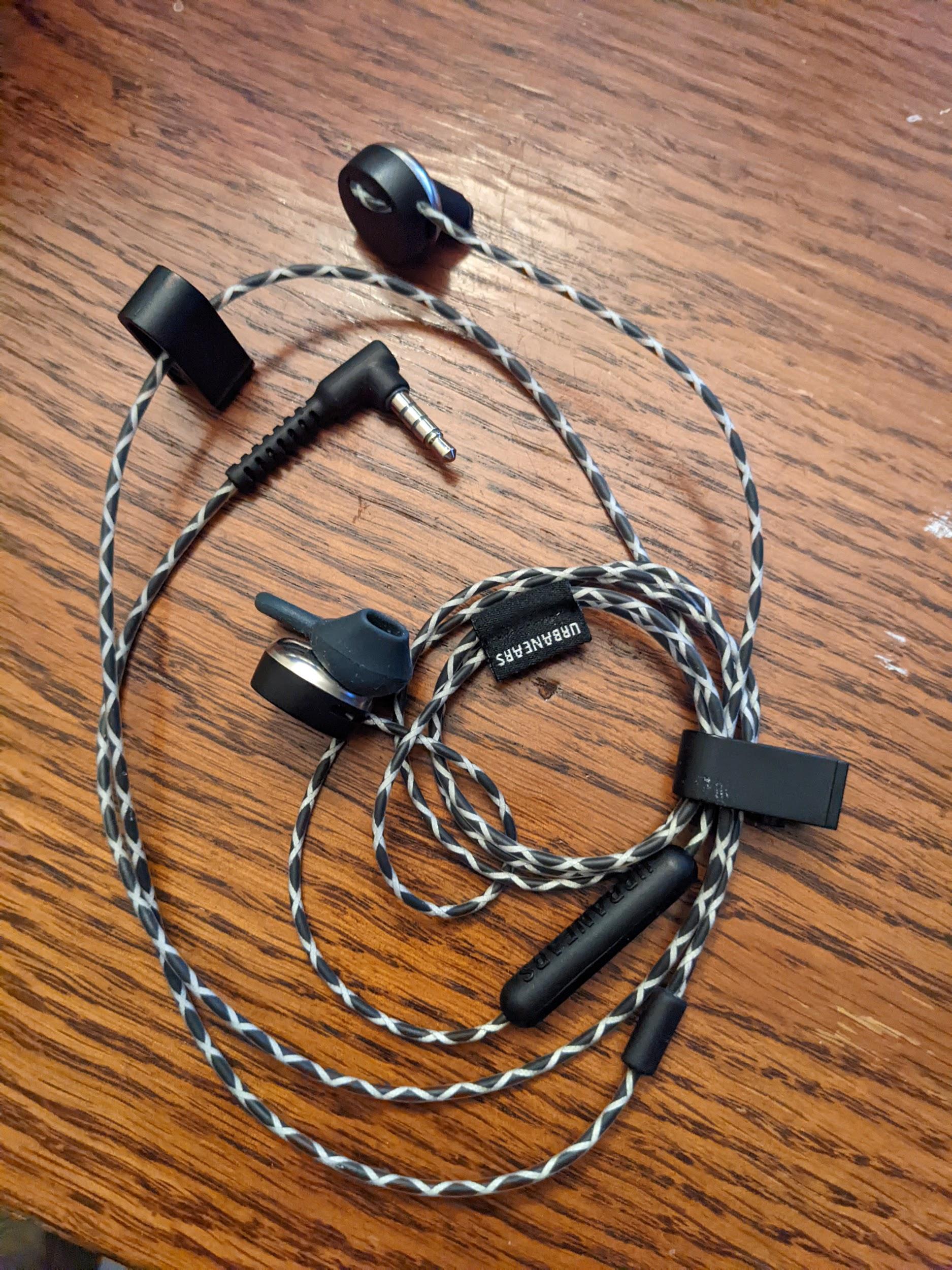
Figure 1. Example Android-compatible analog headset
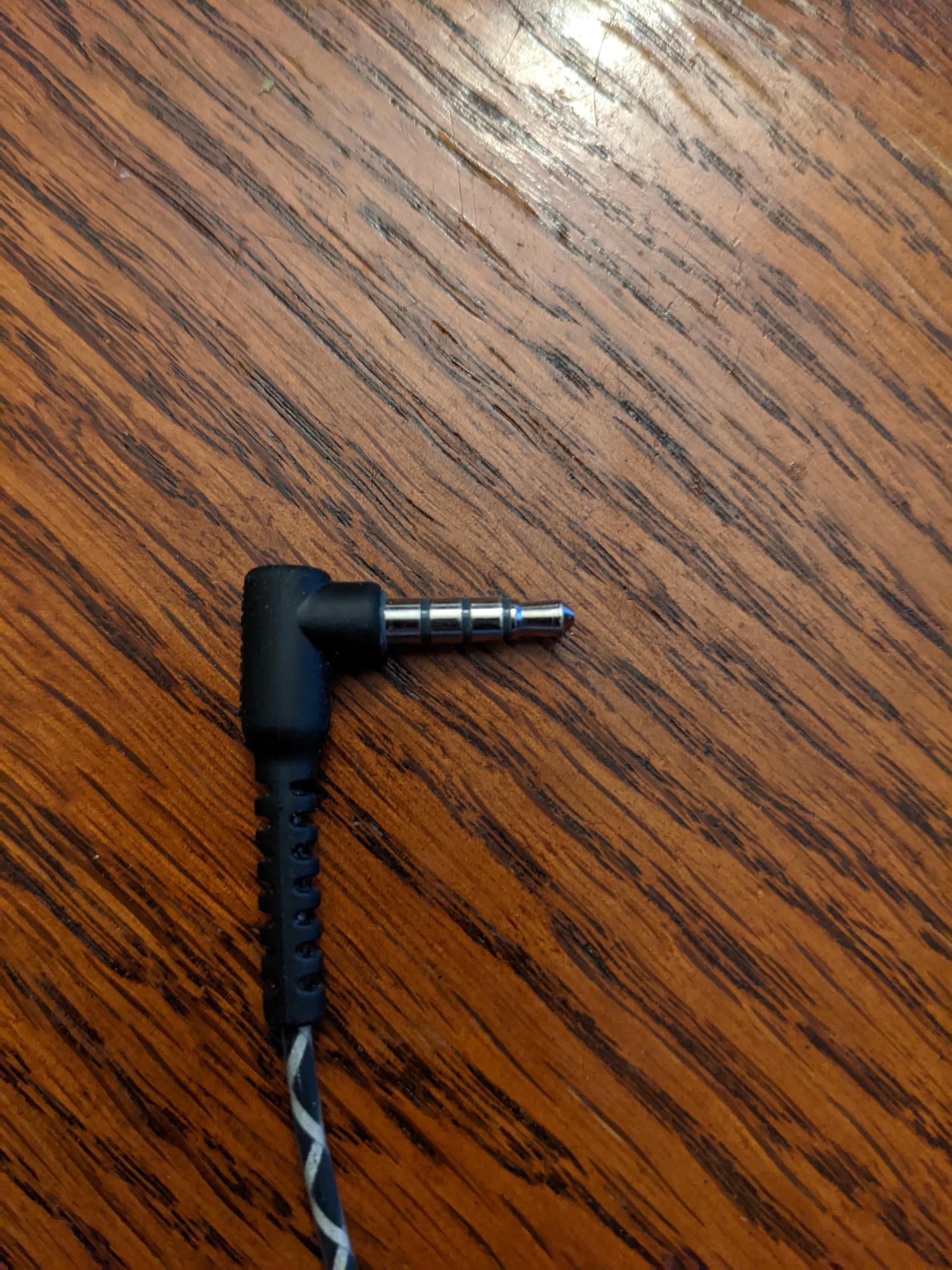
Figure 2. Example 4-conductor, 3.5 mm analog phone plug
These are widely available and often identified with the term Built For Android, though many analog headsets are compatible for purposes of this test.
- Device requirements: The DUT must implement a 3.5 mm headset port. If the DUT doesn't have a 3.5 mm headset port, indicate that during the test.
To run the analog headset audio test, follow these steps:
Verify whether the DUT has an analog headset port:
- If the DUT has an analog headset port, tap Yes.
- If the DUT doesn't have an analog headset port, tap No. The test is marked as PASS. No headset port available and you can move on to the next test.
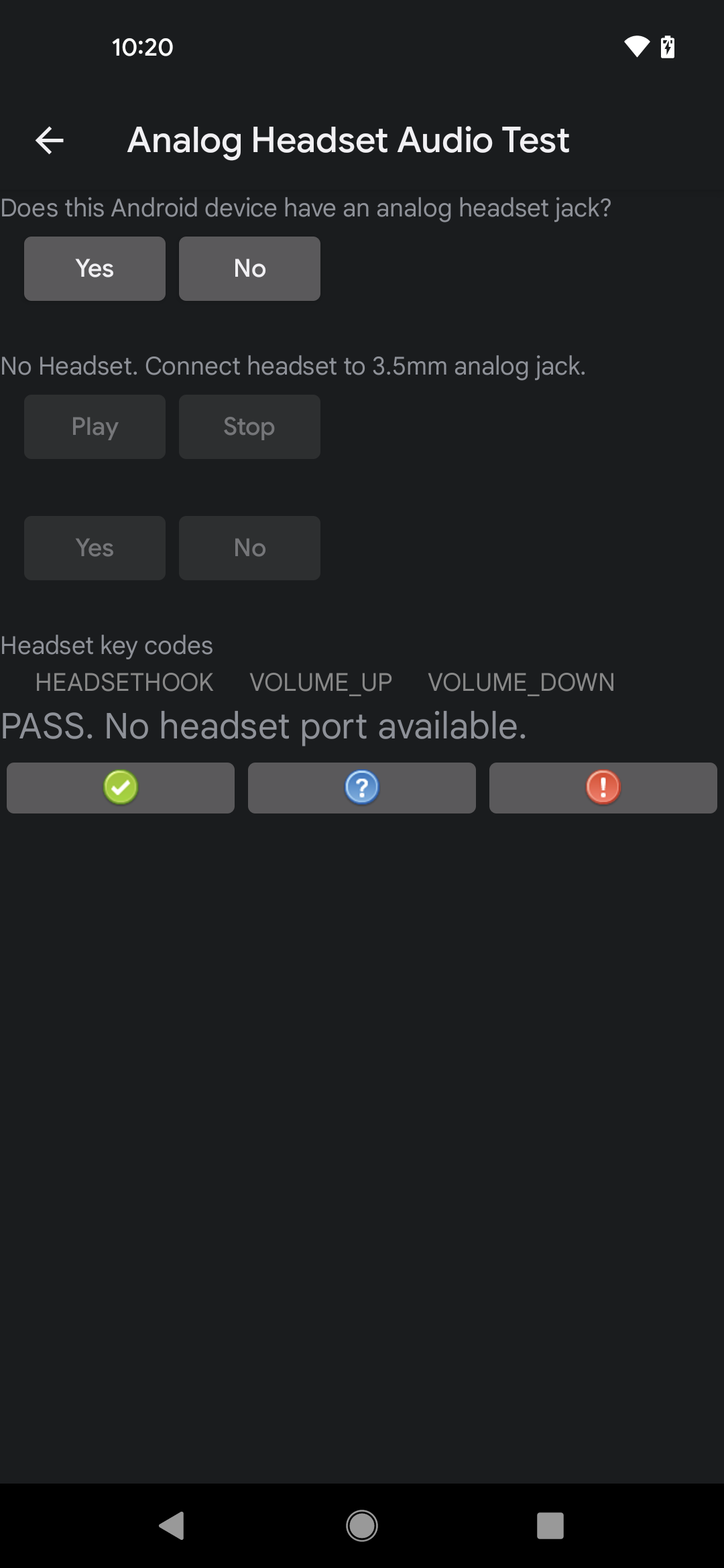
Figure 3. Test result for a DUT with no analog headset port
Insert the analog headset peripheral into the analog headset port on the DUT and verify that a message appears confirming that the plugin notification intent has been received. This message verifies that the DUT has an analog headset port. If no message appears, there's a problem with the plugin intents on the DUT, and the test fails.
Tap Play and verify that a tone plays in the headset. You might need to adjust the volume to hear the tone. Tap Stop to stop playback.
- If a tone plays in the headset, tap Yes.
- If no tone plays in the headset, there's a problem with the audio playback system, and the test fails.
One at a time, press the Volume Up, Volume Down, and Headset Hook or Media Transport buttons on the analog headset and verify that the corresponding label in the analog headset audio test lights up when each button is pressed. This confirms that the DUT recognizes the button presses.
- When all three labels have lit up, the test passes.
- If any label doesn't light up, not all buttons are recognized and the test fails.
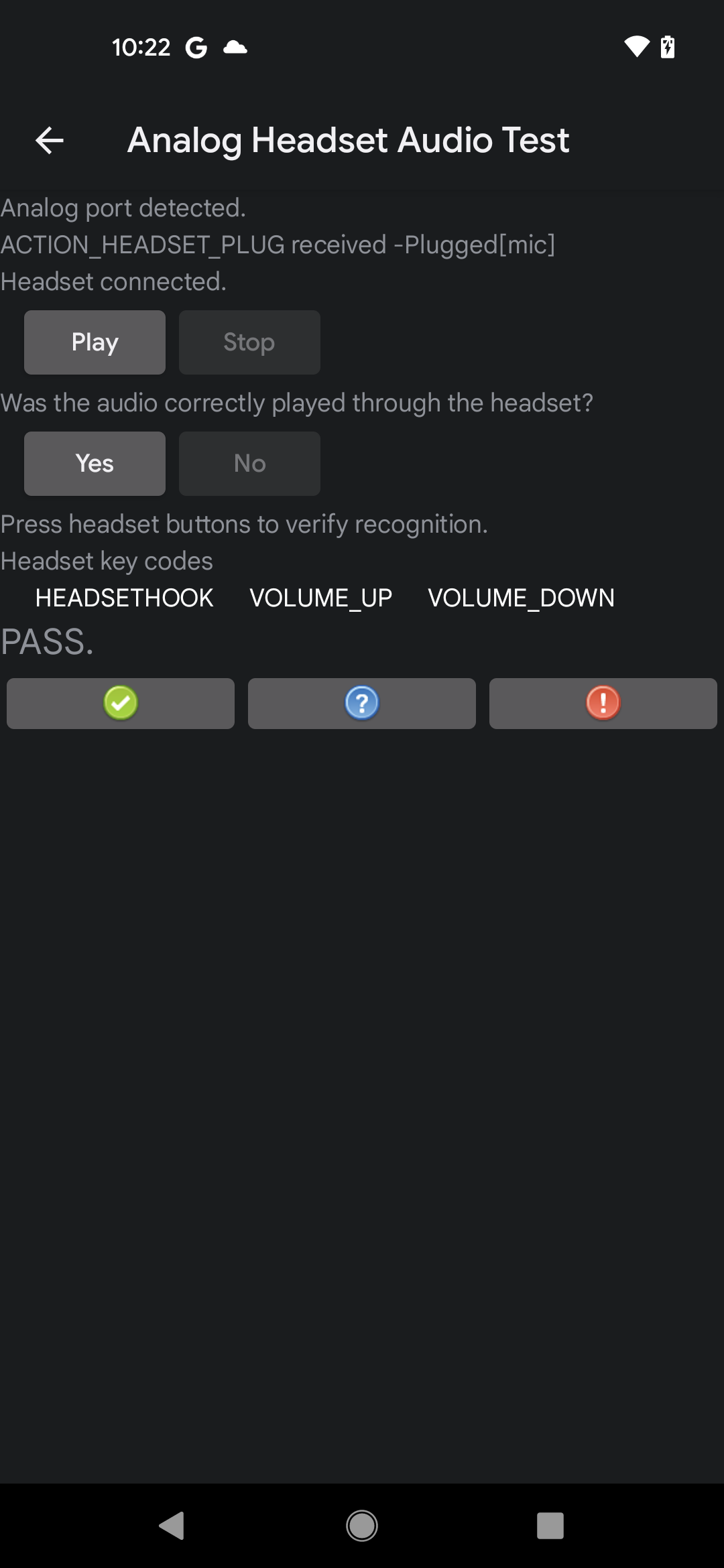
Figure 4. UI result for a passed test
Audio input devices notifications test
The audio input devices notifications test verifies that wired input peripheral connect and disconnect notifications are correctly sent when input peripherals are connected or disconnected. This test has the following requirements:
- Required peripherals: A wired audio I/O peripheral, which can be a wired headset or microphone connected to an analog headset jack on the DUT, or a USB audio headset or a microphone connected to the USB port on the DUT.
- Device requirements: The DUT must support wired audio peripherals, either through a 3.5 mm headset jack or a USB port that supports host mode, or both. If the DUT doesn't support either of these, indicate that in the test.
To run the audio input devices notifications test, follow these steps:
- Verify and indicate DUT support for wired audio peripherals:
- If the DUT has at least one port for wired audio peripherals, tap Yes.
- If the DUT doesn't have a port for wired audio peripherals, tap No. The test is marked as passed, and you can move on to the next test.
- Tap Clear Messages to clear the display of existing notifications, such as notifications that might have been sent when the test started.
Test the connection and disconnection:
- Connect a wired audio input peripheral and verify that a connection notification appears in the test panel.
- Disconnect the wired audio input peripheral and verify that a disconnection notification appears in the test panel.
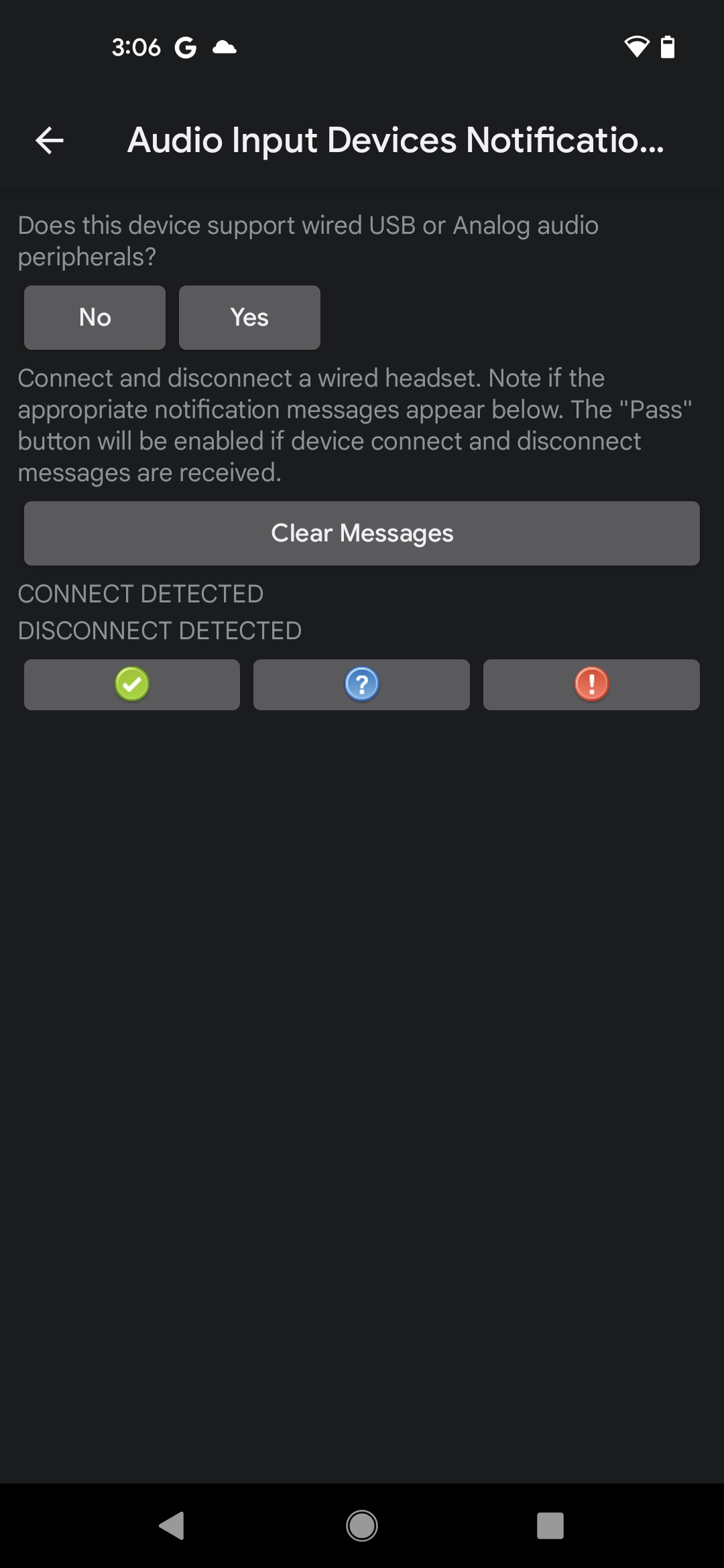
Figure 5. Audio input devices notifications test UI
If both notifications appear, the test passes.
Audio output devices notifications test
The audio output devices notifications test verifies that wired output peripheral connect and disconnect notifications are correctly sent when output peripherals are connected or disconnected. This test has the following requirements:
- Required peripherals: A wired audio output peripheral, which can be a wired headset (or headphones) connected to an analog headset jack on the DUT, or a USB audio headset (or headphones) connected to the USB port on the DUT.
- Device requirements: The DUT must support wired audio peripherals, either through a 3.5 mm headset jack or a USB port that supports host mode, or both. If the DUT doesn't support either of these, indicate that in the test.
To run the audio output devices notifications test, follow these steps:
- Verify and indicate DUT support for wired audio peripherals:
- If the DUT has at least one port for wired audio peripherals, tap Yes.
- If the DUT doesn't have a port for wired audio peripherals, tap No. The test is marked as passed, and you can move on to the next test.
- Tap Clear Messages to clear the display of existing notifications, such as notifications that might have been sent when the test started.
Test the connection and disconnection:
- Connect a wired audio output peripheral and verify that a connection notification appears in the test panel.
- Disconnect the wired audio output peripheral and verify that a disconnection notification appears in the test panel.
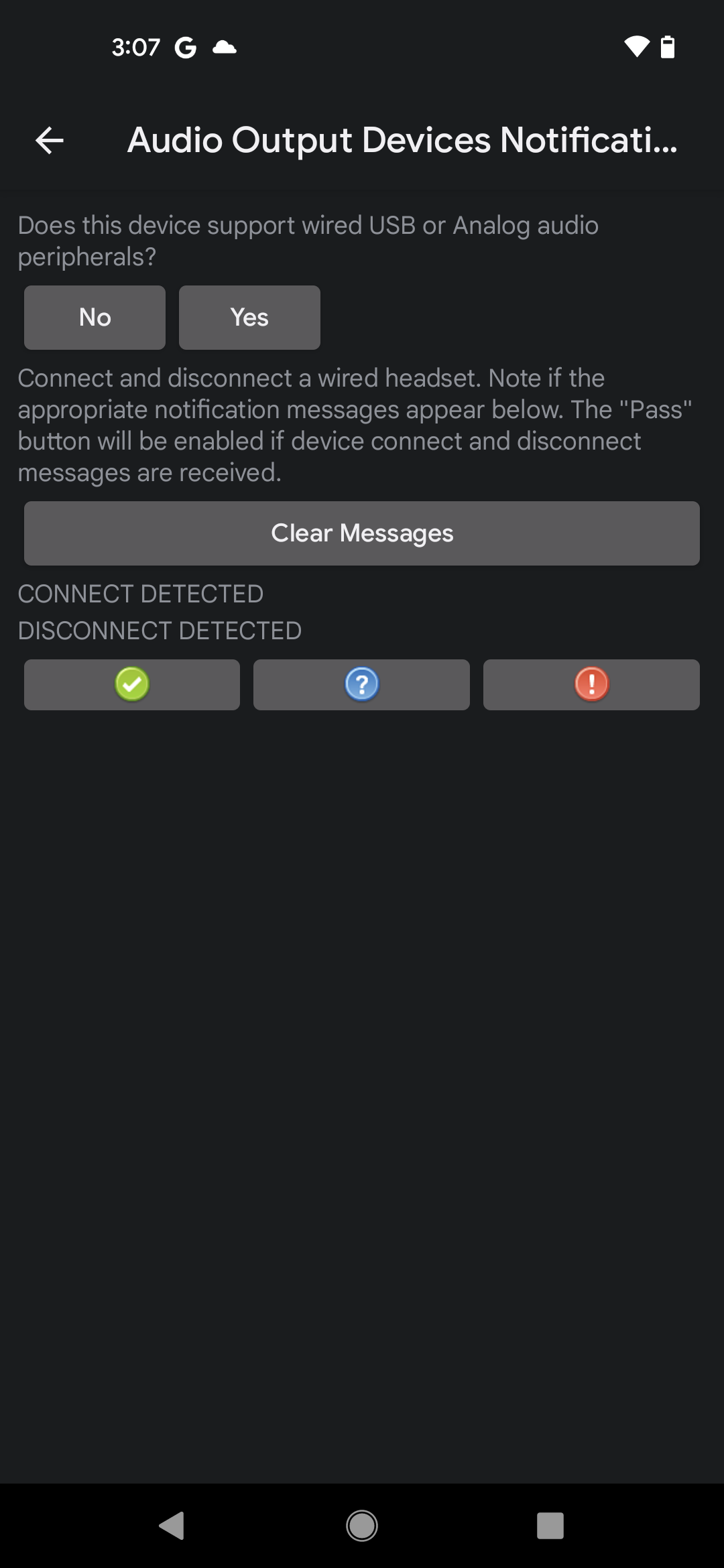
Figure 6. Audio output devices notifications test UI
If both notifications appear, the test passes.
Audio input routing notifications test
The audio input routing notifications test verifies that routing notifications are sent when audio input peripherals are connected to the DUT. This test has the following requirements:
- Required peripherals: A wired audio I/O peripheral, which can be a wired headset or microphone connected to an analog headset jack on the DUT, or a USB audio headset or a microphone connected to the USB port on the DUT.
- Device requirements: The DUT must support wired audio peripherals, either through a 3.5 mm headset jack or a USB port that supports host mode, or both. If the DUT doesn't support either of these, indicate that in the test.
To run the audio input routing notifications test, follow these steps:
- Verify and indicate DUT support for wired audio peripherals:
- If the DUT has at least one port for wired audio peripherals, tap Yes.
- If the DUT doesn't have a port for wired audio peripherals, tap No. The test is marked as passed, and you can move on to the next test.
- Tap Record to start the test. The device doesn't play sounds for this test.
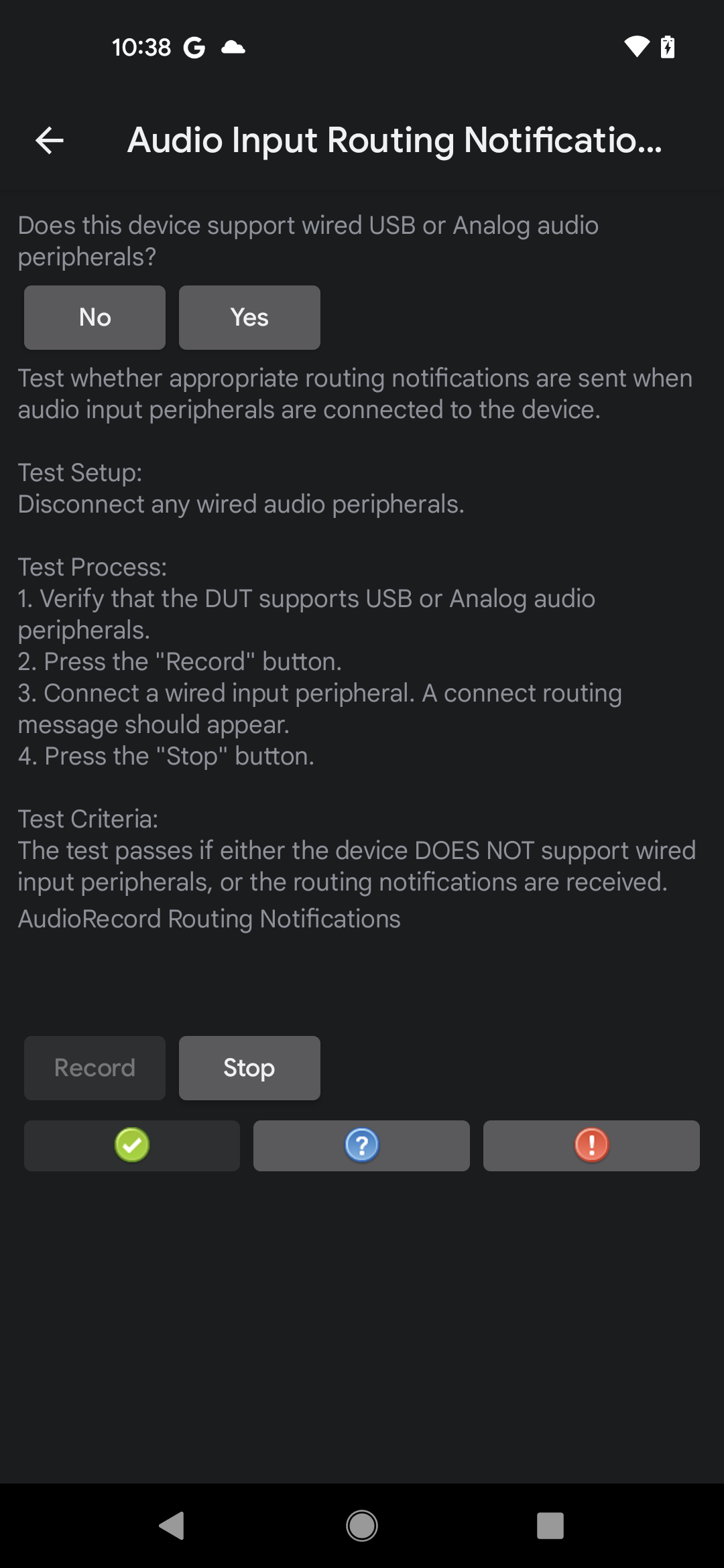
Figure 7. Audio input routing notifications test, recording in progress
- Connect a wired audio input peripheral, wait 5 to 10 seconds, and then verify
that a routing notification message appears.
- If the notification appears, the test passes.
- If the notification doesn't appear, the test fails.
- Tap Stop to end the recording.
Audio output routing notifications test
The audio output routing notifications test verifies that routing notifications are sent when audio output peripherals are connected to the DUT. This test has the following requirements:
- Required peripherals: Wired audio output peripheral, which can be a wired headset (or headphones) connected to an analog headset jack on the DUT, or a USB audio headset (or headphones) connected to the USB port on the DUT.
- Device requirements: The DUT must support wired audio peripherals, either through a 3.5 mm headset jack or a USB port that supports host mode, or both. If the DUT doesn't support either of these, indicate that in the test.
To run the audio output routing notifications test, follow these steps:
- Verify and indicate DUT support for wired audio peripherals:
- If the DUT has at least one port for wired audio peripherals, tap Yes.
- If the DUT doesn't have a port for wired audio peripherals, tap No. The test is marked as passed, and you can move on to the next test.
Tap Play to start the test. The system plays an audible tone.
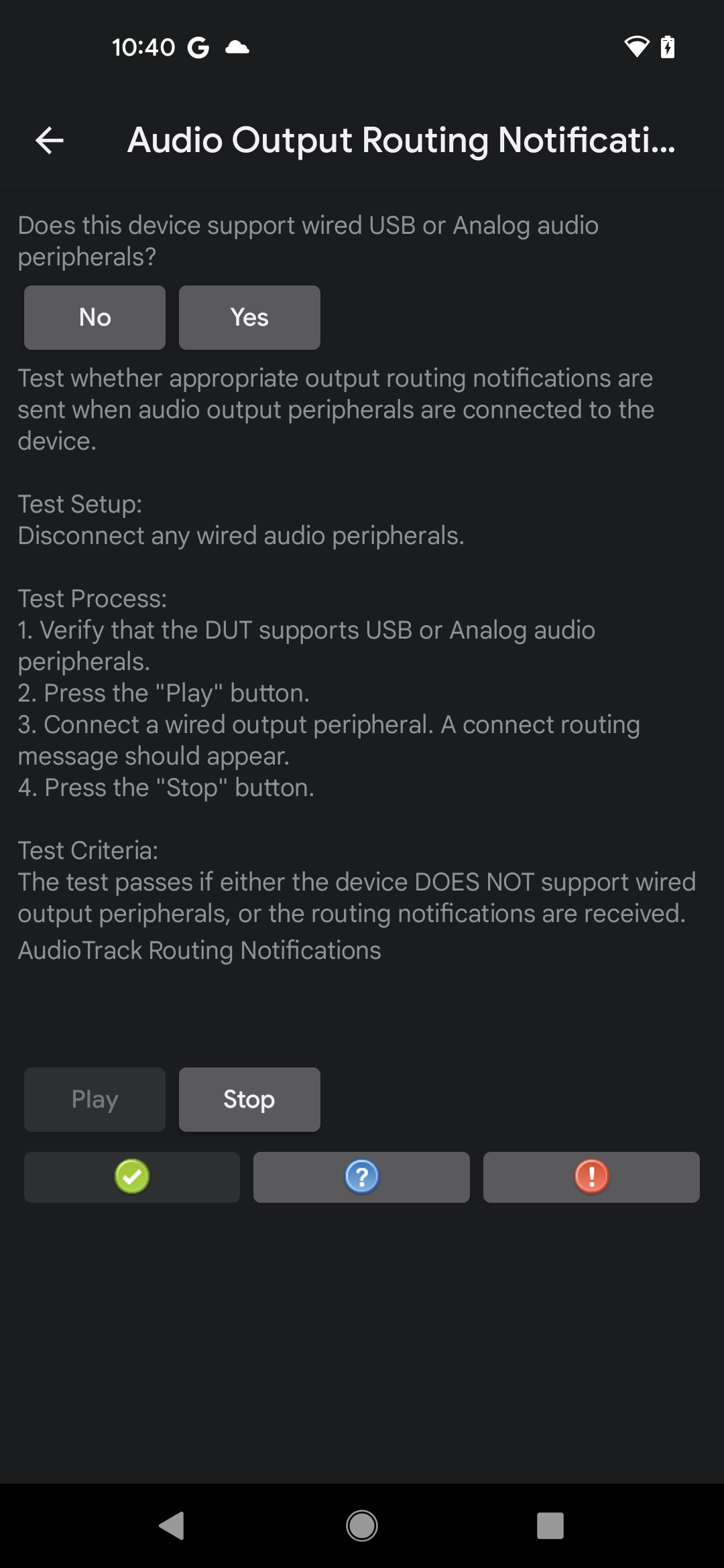
Figure 8. Audio output routing notifications test, playback in progress
Connect a wired audio output peripheral, wait 5 to 10 seconds, and then verify that a routing notification message appears.
- If the notification appears, the test passes.
- If the notification doesn't appear, the test fails.
Tap Stop to end the recording.
Audio stream disconnect test
The audio stream disconnect test verifies correct behavior of the AAudio stream disconnect mechanism when a stream is disconnected from one device and rerouted to another. The test confirms proper behavior of disconnects for multiple stream attributes.
- DUT requirements: The audio stream disconnect test requires a device that contains either an analog headset jack or a USB host-mode audio port (or both).
- Required peripherals: The audio stream disconnect test requires either an analog headset or a USB audio I/O device. The analog loopback connector (used in the audio loopback latency test) can be used in place of an analog headset.
To run the audio stream disconnect test, follow these steps:
- From the CTS Verifier main display, select Audio Stream Disconnect Test to start the test.
- Verify support for an analog headset or a USB audio I/O device by answering the Does this device support an analog or USB audio peripheral? prompt. If the prompt doesn't appear, the system has already verified the existence of the required hardware.
- Press Start. When prompted, insert and remove the audio I/O peripheral a number of times as different configurations of playback or record streams are tested.
The status of each configuration test appears on the screen. If all the configurations test successfully, the test passes.