
This page covers the instructions for running the media playback tests in CTS Verifier (CTS-V), included in Android 17.
The media playback test suite located in the CTS-V test harness
under cts/apps/SecurePlaybackTestApp verifies that secure playback
displays frames on the device's screen without frame drops.
The media playback test suite tests the following APIs:
android.media.MediaCodec#queueSecureInputBufferandroid.media.MediaDrm#getKeyRequestandroid.media.MediaDrm#provideKeyResponseandroid.media.MediaCrypto#MediaCrypto
The media playback test suite verifies the following codecs: AVC, HEVC, VP9, and AV1.
Set up the test environment
To run secure playback tests, set up the following:
- A device under test (DUT)
- A host machine
- Mobile Playback Analysis Tool (PAT). You can purchase a PAT from Tempo Manufacturing.
Set up the DUT
To set up a DUT, follow these steps:
- Connect the DUT to a host machine over USB.
- Grant permissions for the host to access the DUT over ADB.
- Install the CTS-V app (
CtsVerifier.apk) on the device. For more information, see Run CTS-V tests. - Connect the DUT to the internet.
- Connect the PAT to the host.
- With the DUT in a vertical orientation, lay the padded side of the PAT flat over the screen with the PAT's white arrow pointing up.
- Wrap the two bands around the DUT and pull the cord with a white end to tighten.
Set up the host
To set up the test environment, download the PAT setup files and extract
the contents to a new pat-cts directory:
cd pat-cts/v2.4.0./setup.sh
This command sets up the PAT command-line interface and enters a virtual environment with Python installed. If it doesn't automatically enter the environment, run:
source venv/bin/activateWe recommend updating the PAT to match the firmware version included in the setup files. To check your firmware version, run:
(venv) patctl --usb --info | grep "Firmware version"If the firmware version is lower than 2.4.0, update the firmware. Run:
(venv) patctl --usb --update pat_fw_v2.4.0rc2.binFor CTS testing, you must install the Mobly test framework and
snippet-uiautomator in the virtual environment:
(venv) pip install mobly(venv) pip install snippet-uiautomator
Before running the tests, you must also set an environment variable that identifies the location of the test assets while the virtual environment is active. To do so, run:
(venv) cd SecurePlaybackTestApp(venv) source build/envsetup.sh
To re-enter the environment, run:
source pat-cts/v2.4.0/venv/bin/activateCreate configuration files
Using the Mobly framework, you must create a config.yml configuration file to
define the Mobly testbed.
The following is an example config.yml file. A template is provided in the
SecurePlaybackTestApp/ directory.
TestBeds:
  # A testbed where adb will find Android devices.
  - Name: PlaybackAnalysisTestBed
    Controllers:
        AndroidDevice:
        - serial: 8A9X0NS5Z  # quotes are needed if serial id is entirely numeric
          label: dut
    TestParams:
        video_scaling: 1.0  # from 0.0 to 1.0, used if the test video is too large to fit the Playback Analysis Tool
Run tests
To run the CTS-V media playback tests:
- From within the Python virtual environment on the host machine, navigate to
the
SecurePlaybackTestApp/directory. Run the test:
python ./secure_playback_test.py -c config.ymlAfter around 10 seconds, a video begins to play on the device.
Align the grooves on the PAT with the five black and white bars of the video as shown in the following diagram. Make sure that the PAT is aligned with the arrow pointing left with respect to the orientation of the video.
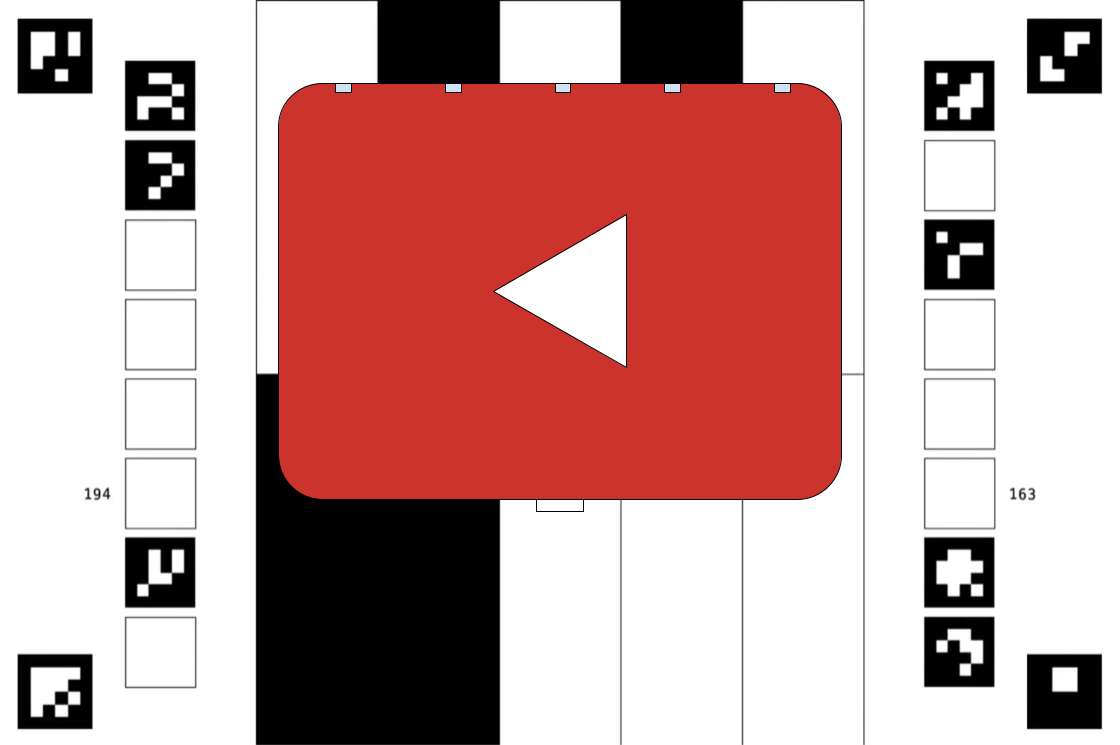
Figure 1. Properly aligned PAT.

Figure 2. PAT needs scaling.
After you align the PAT, wrap the two cords around the device and tighten them with the pull tab extending out of the left side of the PAT. Verify that the alignment isn't changed, and realign if necessary. You can disconnect the DUT from the host to do this, but verify that the DUT is reconnected before proceeding. Make sure that the PAT is completely flat against the DUT, as shown in Figure 4. Place the device in a location where it won't be touched for a few minutes, and enter
yto continue testing. Verify that the device doesn't move after alignment.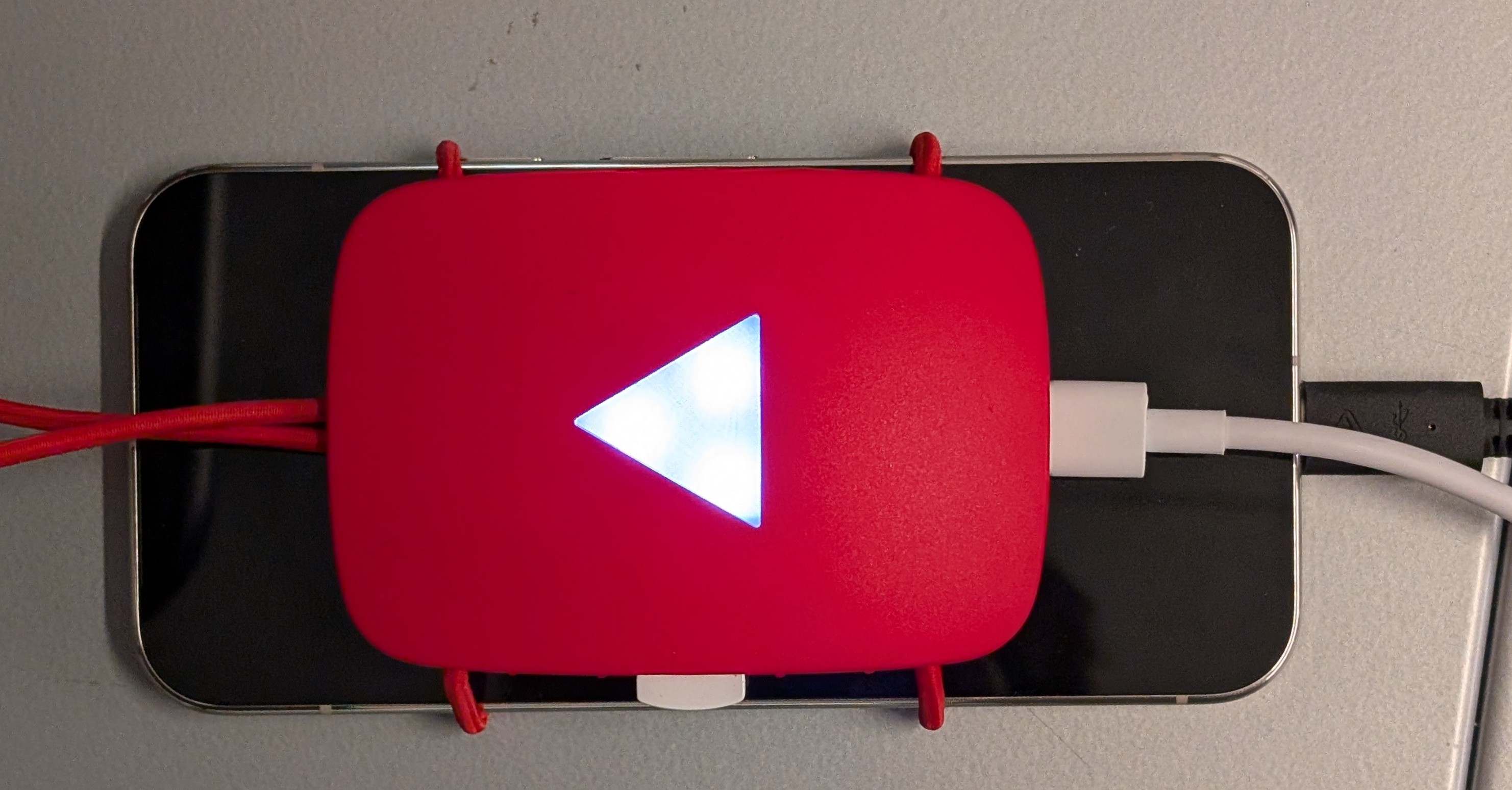
Figure 3. PAT and DUT, top view.
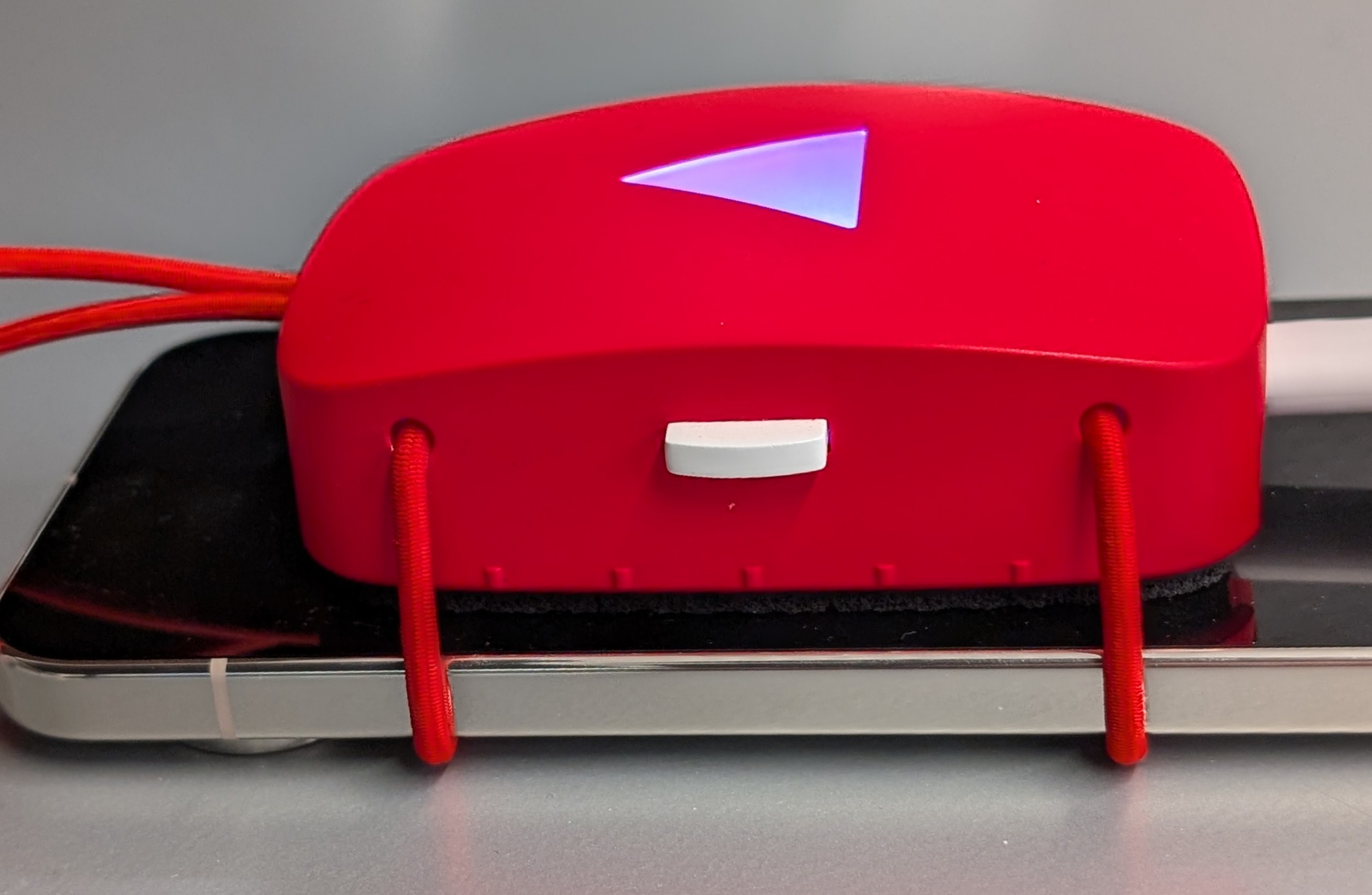
Figure 4. PAT and DUT, side view.
When the test passes, the Pass button is enabled. Record a passed test by tapping this button.