
The Cloud Orchestration app provides a high-performance, scalable way to manage Cuttlefish instances, particularly for ARM-based virtual devices (CHD). OmniLab ATS supports Cloud Orchestration so that you can run tests on virtual devices. Before starting to use virtual devices, follow OmniLab Android Test Station to install OmniLab ATS.
Overview
Cloud Orchestration lets OmniLab ATS delegate the management of Cuttlefish instances to a dedicated Cloud Orchestrator service. This approach offers several advantages over the existing local and remote modes while preserving a familiar user experience:
- Parallel instance launching: Permits launching multiple Cuttlefish instances simultaneously, significantly reducing the overhead time before tests start.
- Scalability: Suits large-scale testing environments.
- Resource isolation: Decouples the test execution environment (ATS worker) from the device emulation environment.
Prerequisites
- A host machine capable of running Docker
- Access to the Cuttlefish orchestration Docker images
Set up Cloud Orchestrator service
The Cloud Orchestrator service manages the lifecycle of Cuttlefish instances. You can deploy the service in various environments, and it supports both x86 and ARM architectures:
- Same host as ATS worker: Runs in a Docker container on the same machine
- Separate machine: Runs on an on-premise server capable of running Docker
- Cloud instance: Runs on a virtual machine in a cloud environment, for example, Google Compute Engine
Install and set up the service
Follow the Cloud Android Orchestration README to launch the service.
Auth and permissions
If the Cloud Orchestrator service is running on a remote machine, ensure that the ATS worker host has the necessary permissions to access it through HTTP requests. If HTTP connection isn't allowed, you might need to set up SSH port forwarding. For details, see Try cloud orchestrator.
Expected state
After the Cloud Orchestrator service is successfully started, it should be reachable using HTTP. You can verify its state by querying its API:
- Ping the service: You should be able to reach the service endpoint from
the OmniLab ATS worker host. For example, running
curl -I
http://localhost:8080/v1/zones/local/hosts
should return a successful HTTP response (eitherHTTP/1.1 200 OKor a302 Foundredirecting to/username), confirming that the service is active and reachable.
Configure OmniLab ATS for Cloud Orchestration
Before starting OmniLab ATS, make sure all Cuttlefish instances on OmniLab ATS worker host are stopped. OmniLab ATS automatically launches and stops the virtual devices during the test cycle, and existing Cuttlefish instances conflict with instances managed by OmniLab ATS. For details on stopping Cuttlefish instances, see Stop Cuttlefish.
To enable Cloud Orchestration in OmniLab ATS, pass specific flags when starting OmniLab ATS:
mtt start --max_orchestration_virtual_devices N \
  --orchestration_service_url=http://HOST:PORT \
  --use_host_network \
  --force_ats_version 2 \
--force_update--max_orchestration_virtual_devices: Sets the maximum number of virtual devices managed by Cloud Orchestrator that OmniLab ATS can simultaneously allocate. The default number is 0.--orchestration_service_url: Specifies the URL where the Cloud Orchestration service is listening, for example,http://localhost:8080.--use_host_network: Uses the host's network namespace for the container. This is required to access the Cloud Orchestration service.--force_ats_version 2: Forces the use of OmniLab ATS 2.0, which is required for Cloud Orchestration. For more information, see the OmniLab ATS 2.0 upgrade guide.--force_update: Pulls the latest container build with ATS 2.0 and Cloud Orchestration features.
Configure virtual device hardware specifications (optional)
By default, each cloud-orchestrated virtual device instance is provisioned with
four CPUs, 8192 MB (8 GB) of RAM, a regular SIM, and an attached SD
card image. When launching OmniLab ATS with Cloud Orchestration, you can
override any of these defaults by passing the corresponding lab server flag in
the mtt start command using --extra_docker_args. Each flag is independent:
pass only the flags you want to change and omit the rest to keep their default
values.
--android_jit_emulator_cpus: Sets the number of CPU cores for each virtual device instance. If not set or 0, defaults to4.--android_jit_emulator_memory_mb: Sets the memory in megabytes (MB) for each virtual device instance. If not set or 0, defaults to8192.--android_jit_emulator_modem_simulator_sim_type: Sets the SIM type that the modem simulator emulates for each virtual device instance:1for a regular SIM, or2for a SIM with carrier privileges (required byCtsCarrierApiTestCases). If not set or 0, defaults to1.--android_jit_emulator_use_sdcard: Sets whether to create a blank SD card image and attach it to each virtual device instance (trueorfalse). Defaults totrue. Set tofalseto disable SD card creation.
The following example overrides all four defaults:
mtt start --max_orchestration_virtual_devices N \
  --orchestration_service_url=http://HOST:PORT \
  --use_host_network \
  --force_ats_version 2 \
  --force_update \
  --extra_docker_args '-e LAB_SERVER_OPTS="--android_jit_emulator_cpus=CPUS --android_jit_emulator_memory_mb=MEMORY_MB --android_jit_emulator_modem_simulator_sim_type=SIM_TYPE --android_jit_emulator_use_sdcard=USE_SDCARD"'
Run a test with cloud-orchestrated devices
This section describes the steps to run a test on cloud-orchestrated virtual devices.
Select devices
On the device list, OmniLab ATS displays cloud-orchestrated virtual devices as
placeholders instead of their actual serial numbers. The placeholders are shown
in the format of HOSTNAME:PORT (for example,
thehostname:6520). The states are either Available or Allocated. A
placeholder in the Available state indicates that the virtual device is not
running and can be allocated for the test.
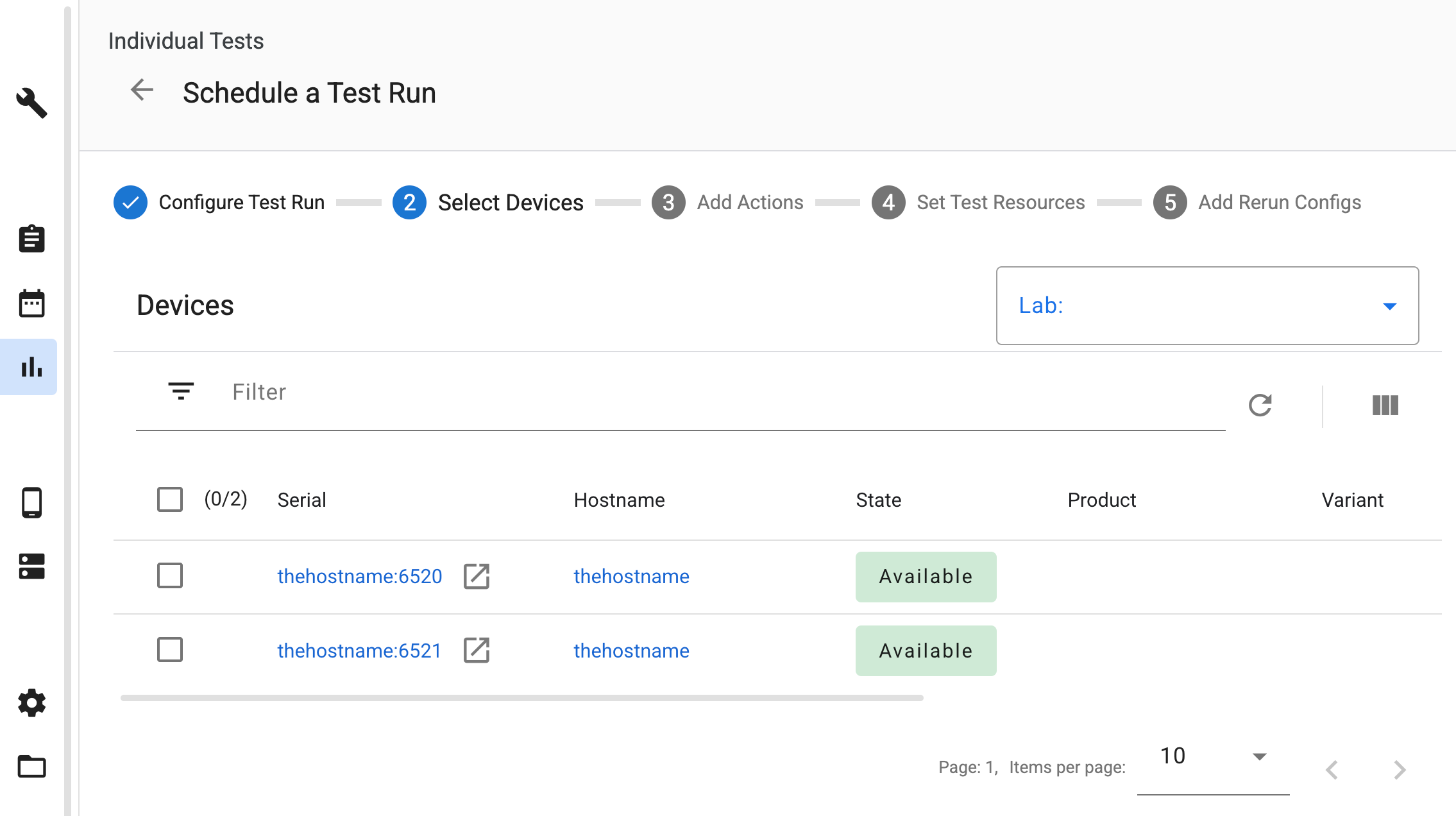
Figure 1. Selecting cloud-orchestrated virtual devices.
Add device actions
When a test is scheduled on these devices, ATS automatically adds the required device actions to provision and manage the Cuttlefish instances during the test cycle.
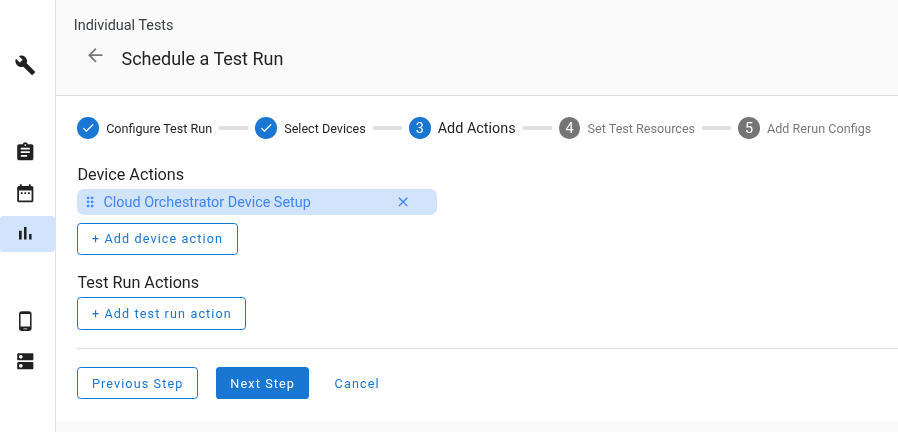
Figure 2. Automatic device actions.
Set test resources
When scheduling a test, you must provide the required test resources. In the Set Test Resources section, ensure you map the uploaded files to the correct resource names:
- Map the host tools package, for example,
cvd-host_package.tar.gz, to the namecvd_host_package. - Map the device image zip to the name
cvd_device_image.
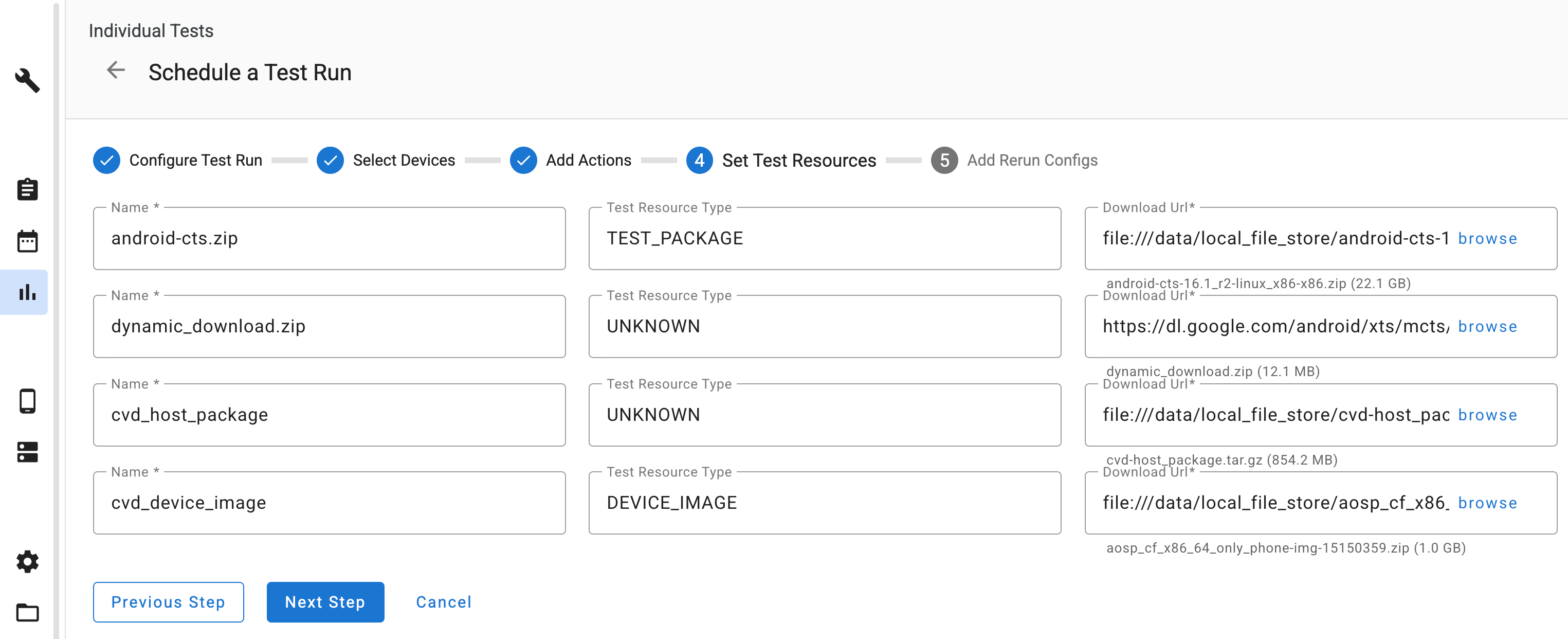
Figure 3. Mapping test resources.
View test runs and logs
After the test completes, you can view the logs in the output files section. Specific logs collected for Cloud Orchestrator-managed instances include:
launcher.log: Logs from the Cuttlefish launcherkernel.log: Standard Android kernel log