
This page provides setup and calibration instructions for the presence calibration requirements for devices running Android 14 and higher.
To ensure that users' smart devices work well together, it's critical that all devices in the Android ecosystem can determine the relative proximity between devices. Android 14 introduces presence calibration requirements that outline the acceptable performance of available radio technologies used to determine proximity, such as Ultra Wideband (UWB), Wi-Fi, and Bluetooth Low Energy (BLE).
Reference device
To calibrate your device to meet the presence requirements, use one of the following reference devices for all calibrations.
- (Recommended) A Pixel phone
- If not using a Pixel phone, use the same make and model device as the device being tested.
Form factors
Presence calibration is important for Android devices of all form factors. For form factors other than mobile phones, to determine the appropriate calibration setup for the device, consider how a user holding a mobile phone (reference device) would be positioned when interacting with the device under test (DUT). For example, when calibrating a TV, place the TV and the mobile phone at an appropriate distance from each other and orient the mobile device so it's facing the front center of the TV screen.
UWB requirements
Refer to CDD section 7.4.9 for UWB requirements.
UWB calibration setup
Use the following setup to calibrate your device to meet UWB requirements.
General setup requirements
Two devices with UWB hardware are required, one as the DUT and one as the reference device.
Two tripods to hold the devices are required.
The DUT and the reference device must be placed 1 meter apart in a line of sight environment in a nonreflective chamber. Both devices must be positioned in a portrait orientation with the screen facing away from each other.
An example of a UWB calibration setup is shown in Figure 1 and Video 1.
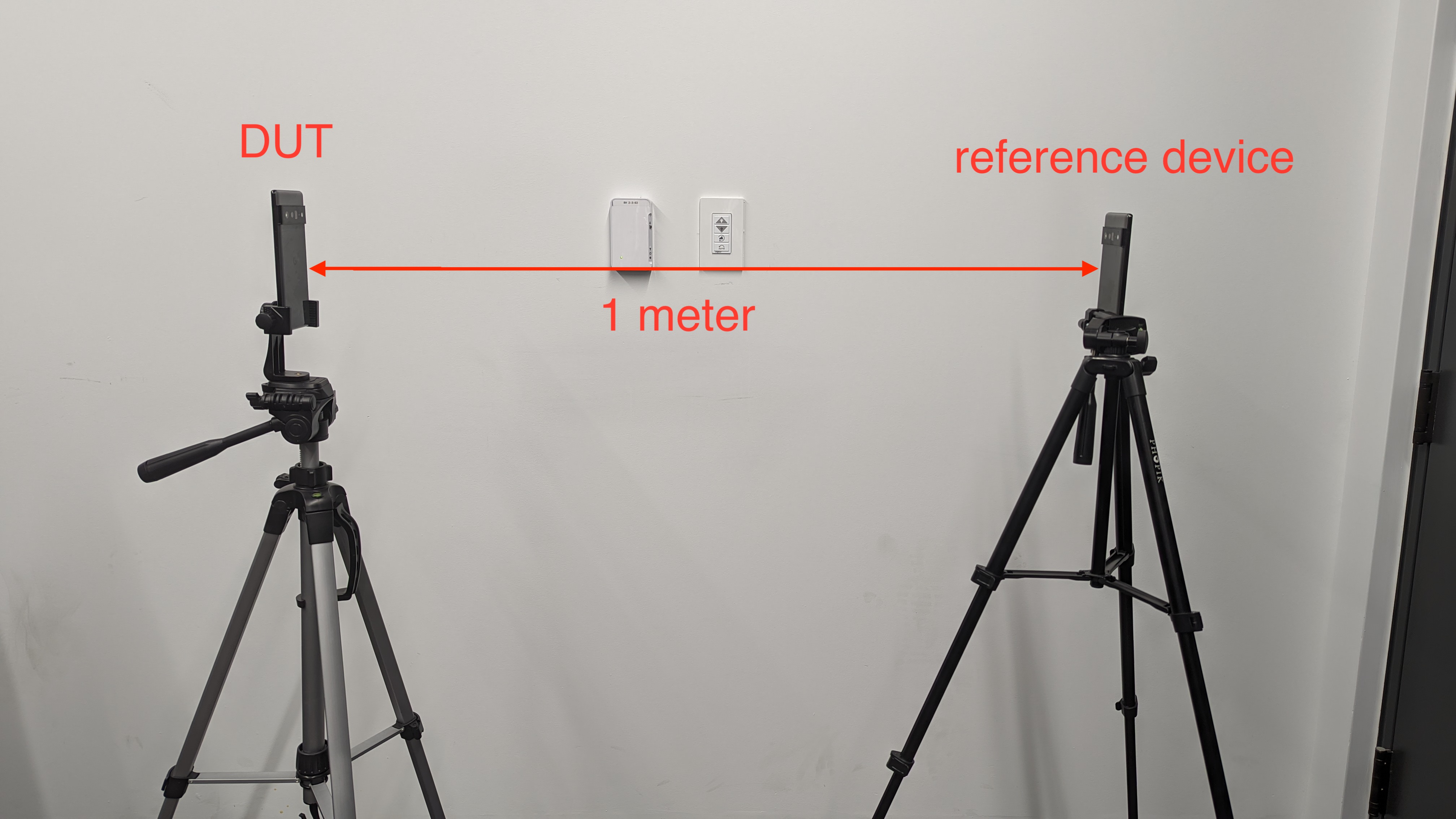
Figure 1. Reference setup for UWB calibration.
Video 1. Reference setup for UWB calibration.
Verify compliance of CDD 7.4.9 [C-1-6] and [C-1-7]
To verify compliance with CDD 7.4.9 [C-1-6] and [C-1-7], run the
RangingMeasurementTest#test_distance_measurement_accuracy multidevice CTS
test case for distance measurement. This is a manual CTS test.
run cts -m CtsUwbMultiDeviceTestCase_RangingMeasurementTests -t RangingMeasurementTest#test_distance_measurement_accuracyIf you have more than two devices connected to the CTS host machine,
specify the DUT ID and reference device ID in the run cts command.
run cts -m CtsUwbMultiDeviceTestCase_RangingMeasurementTests -t RangingMeasurementTest#test_distance_measurement_accuracy --shard-count 2
-s DUT_ID -s REFERENCE_DEVICE_ID
The multidevice CTS test case initiates a UWB ranging session between the DUT and the reference device, and takes 1,000 measurements with the DUT. The test then automatically processes the measurements and determines whether the device passes or fails by doing the following:
Sort the measurements in ascending order.
Compute the range as: range = 975th measurement - 25th measurement.
Report the range in the multidevice CTS test. To pass, the range must be less than 30 cm.
Report the median value (500th) in the multidevice CTS test. To pass, the value must be between 0.75 m and 1.25 m inclusive.
Wi-Fi Neighbor Awareness Networking requirements
CDD section 2.2.1. Hardware includes requirements for Wi-Fi Neighbor Awareness Networking (NAN) compliance.
Verify compliance of CDD 2.2.1 [7.4.2.5/H-1-1]
To verify compliance with CDD 2.2.1 [7.4.2.5/H-1-1]:
Install (if not previously installed), and open the CTS Verifier app (CTS-V) on both the DUT and reference device. The CTS-V test for this requirement is under Presence Test > NAN Accuracy Test.
Place the DUT at the test distance of 10 cm away from the reference device, with nothing in between the two devices.
On the test screen of the reference device, ensure that the Is reference device checkbox is checked, then tap Start publishing.
Select the test distance of 10 cm in the CTS-V activity on the DUT, and tap Start Test. The CTS Verifier then performs 100 ranging measurements, and computes and records the range of the measurements to the CTS-V logs. When the test is complete, verify whether the computed range is within the expected range in the CTS Verifier app on the DUT.
Repeat steps 1 through 4 for the other test distances of 1 m, 3 m, and 5 m. The test passes if the ranges for all the test distances are within the expected range. Otherwise, the test distances for which the test failed are displayed on the CTS-V screen.
BLE RSSI requirements
CDD section 7.4.3. Bluetooth includes requirements for BLE RSSI compliance.
Calibration setup
Use the following setup to calibrate your device to meet the BLE RSSI requirements.
General setup requirements
For optimal results, use an anechoic chamber to minimize interference with measurements.
If not using an anechoic chamber, set up one tripod holding the reference device and one holding the DUT device 1.5 meters from the ground, with similar clearance from the ceiling.
Prepare the reference device and DUT device:
- Ensure both devices are charged enough to complete the tests.
- Unplug both devices during testing.
- Remove all cases, attached wires, and other attachments that might affect radio frequency (RF) performance.
Attach each device to a tripod with a device holder.
- Tripods and device holders should have as little metal in them as possible.
- A small metal spring in device holders is fine.
Remove any metal objects between two devices.
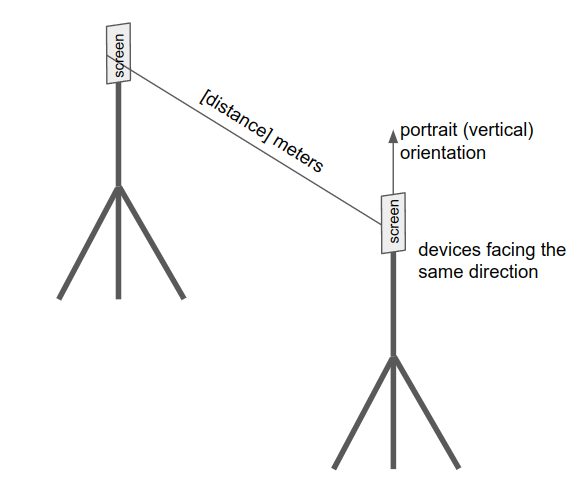
Figure 2. Reference setup for BLE calibration.
Verify compliance of CDD 7.4.3 [C-10-1]
To verify compliance with CDD 7.4.3 [C-10-1]:
Install (if not previously installed), and open the CTS Verifier app (CTS-V) on both the DUT and reference device. The CTS-V test for this requirement is under Presence Test > BLE RSSI Precision Test.
Place the DUT at the test distance of 1 m away from the reference device, following the BLE calibration setup.
Tap Start advertising on the reference device, then follow the instructions on the DUT's screen to input the device ID specific to the reference device, which is displayed on the reference device after advertising starts. Tap Start Test on the DUT.
When data collection is complete (1,000 scans collected on the DUT), the test automatically passes or fails, depending on the computed range. To pass, the range must be less than or equal to 18 dBm.
Verify compliance of CDD 7.4.3 [C-10-2]
To verify compliance with CDD 7.4.3 [C-10-2]: The chip vendor can measure the channel flatness and identify the differences between cores and channels.
The following are tips on how to identify issues with uncalibrated cores and uncalibrated channels, which are two possible causes of large RSSI spread.
Uncalibrated cores
If the Bluetooth antenna on a device has multiple cores, the cores might have different calibrations. Take some measurements (at least 1 minute worth) and check the scan data. If you see a pattern similar to the one shown in Figure 3, which has regular peaks (as indicated by the circles) due to scanning on multiple cores, there is likely to be an issue with uncalibrated cores and further investigation is required.
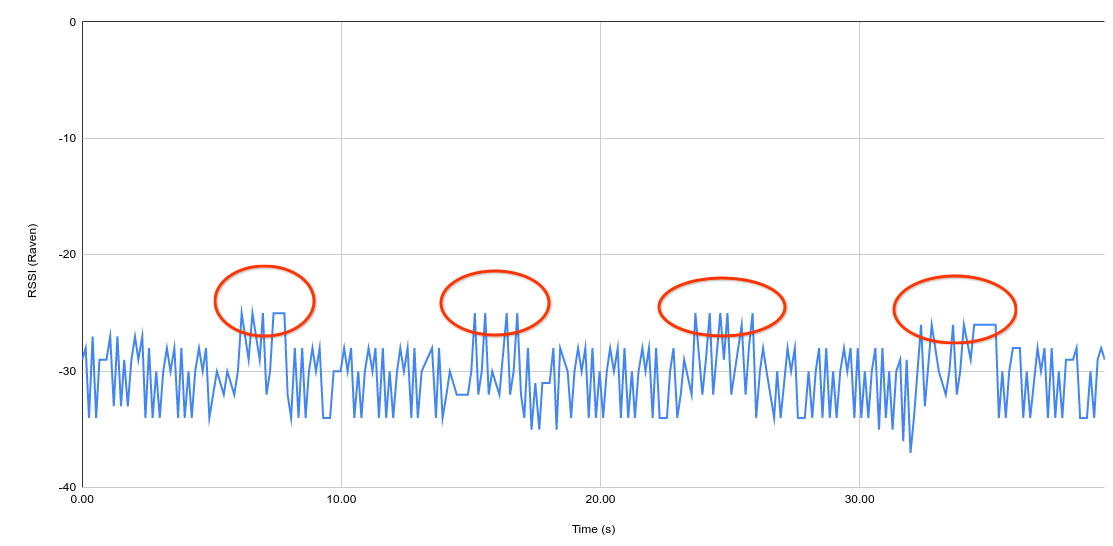
Figure 3. Example of scan data for a device with uncalibrated cores.
Uncalibrated channels
Transmissions on classic BLE happen on three channels. Each channel might have differences associated with it. The channels are rotated at fixed intervals. Take some measurements (at least 1 minute worth) and check the scan data. If you see a pattern similar to the one shown in Figure 4, there is likely to be an issue with miscalibration on different channels and further investigation is required.
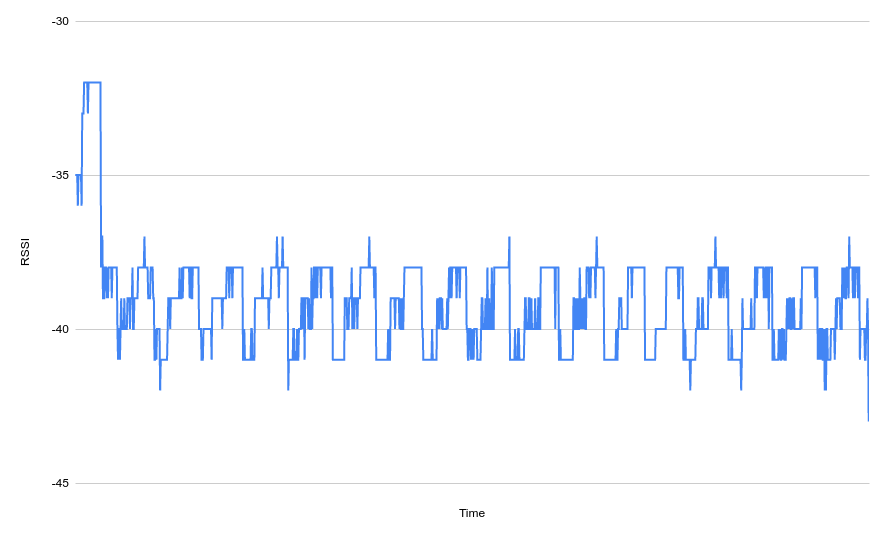
Figure 4. Example of scan data for a device with uncalibrated channels.
Verify compliance of CDD 7.4.3 [C-10-3] and [C-10-4]
Even when a BLE radio chip is perfectly calibrated, the RSSI that a particular device observes depends on the antenna quality and the antenna placement on that particular product (device model). This presents a problem for interoperability between devices.
For example, consider a car unlock use case. An app developer might want to unlock a car when the device is within 1 meter of the car. The developer chooses a threshold of -60 dBm based on their observations with a phone they have, but due to differences in antenna quality and antenna placement, this might not work well with another Android device even if both devices use the same chip.
For interoperability between all devices in the ecosystem, you must measure the
Rx offset for each device and adjust the RSSI reported on the device to ensure
that the BLE RSSI meets the standard of 1 m at ADVERTISE_TX_POWER_HIGH.
Even when the BLE radio chips are perfectly calibrated, the ideal receiver reads different RSSI depending on the antenna quality and antenna placement on the advertising device. The Rx requirement ensures that all devices are able to advertise with the same resulting strength, all else being equal.
For devices running Android 14 and higher, to verify compliance with the Rx and Tx requirement:
Install (if not previously installed) and open the CTS Verifier app (CTS-V) on both the DUT and reference device. The CTS-V test for this requirement is under Presence Test > BLE Rx/Tx Offset Precision Test.
Place the DUT at the test distance of 1 m away from the reference device, following the BLE calibration setup. We recommend devices be oriented such that they are parallel to each other with screens facing the same direction.
Tap Start advertising on the reference device, then follow the instructions on the DUT's screen to input the device ID specific to the reference device, which is displayed on the reference device after advertising starts.
Tap Start Test on the DUT. In this test, to verify the Rx requirement, the reference device performs scans in the background at the same time as when advertising is started.
When data collection is complete (1,000 scans collected on both devices), the test passes if the computed median (500th measurement) for both Rx and Tx tests are between -65 dBm and -45 dBm. The test fails if the computed median for the Rx or Tx test isn't within the accepted range.
Calibrate the devices to compensate the Rx offset and Tx power to ensure a median RSSI of -55 dBm.
Rx: Adjust the RSSI by setting the
bluetooth.hardware.radio.le_rx_path_loss_comp_dbsystem property to the value (dB) that compensates the Rx offset to ensure a median BLE RSSI of -55 dBm at 1 m. The Bluetooth stack adjusts the RSSI to be RSSI plus the value ofbluetooth.hardware.radio.le_rx_path_loss_comp_db.For details, see
le_scanning_manager.cc.Tx: Adjust the Tx power by setting the
bluetooth.hardware.radio.le_tx_path_loss_comp_dbsystem property to the value (dB) that compensates the Tx power to ensure a median BLE RSSI of -55 dBm at 1 m. The Bluetooth stack adjusts the Tx power to be Tx power plus the value ofbluetooth.hardware.radio.le_tx_path_loss_comp_db.For details, see
le_advertising_manager.cc.