
Android provides users with transparency by displaying privacy indicators for the following types of access:
Camera and microphone access. The indicator appears when an app uses a private data source through camera and microphone app-op permissions. For the related CDD requirement, see 2.2.5. Security Model.
Location access. The indicator appears when an app accesses the device's location. For the related CDD requirement, see 9.8.8. Location.
Users tap an indicator to see which apps have accessed their data.
Active and recent usages
The Android UI distinguishes between running usages and recent usages:
In Android 17 or higher, location usages are considered active if they're marked by the system as running, or are less than 10 seconds old. For the location dot, access is considered active if the nonsystem app is running at a foreground state.
In Android 12 or higher, microphone and camera usages are considered active if they're either marked by the system as running, or are less than five seconds old.
Status bar icons show each time an app has ongoing user-sensitive microphone, camera, or location access. Users can tap these icons and see which apps are accessing the microphone, camera, location, or a combination of these items. Here's an example of in-use indicators:
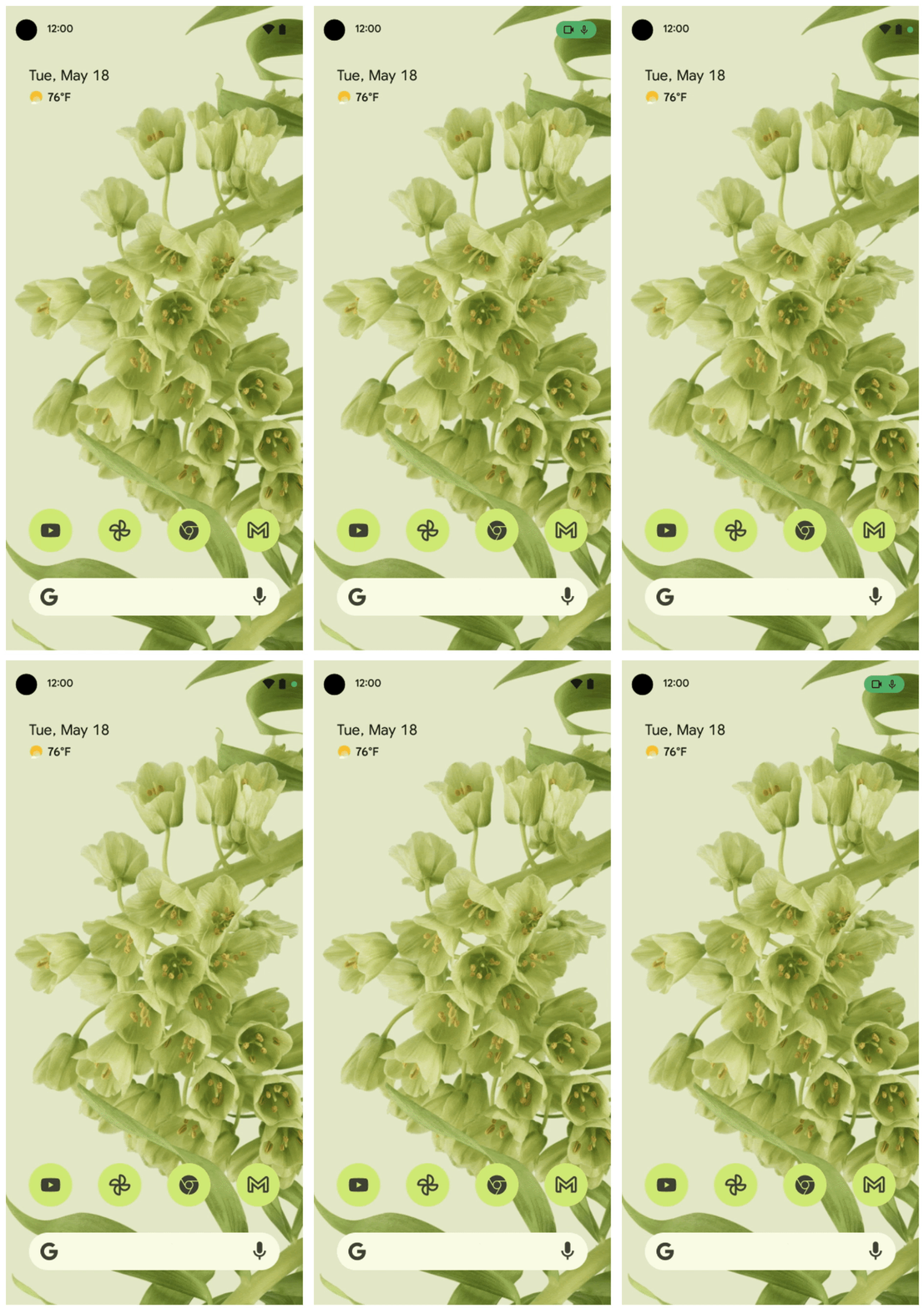
Figure 1. In-use indicators showing active access (top-right corner).
Access is considered active for as long as the indicators show. An icon shows first, then transitions to a dot that persists until the app is either dismissed or closed. When a user opens Quick Settings and then taps the indicators, a dialog appears that shows whether the app is using the microphone, camera, location, or a combination of these items.
Figure 2 illustrates active access indicators when data has been accessed within the active time window by a running app.
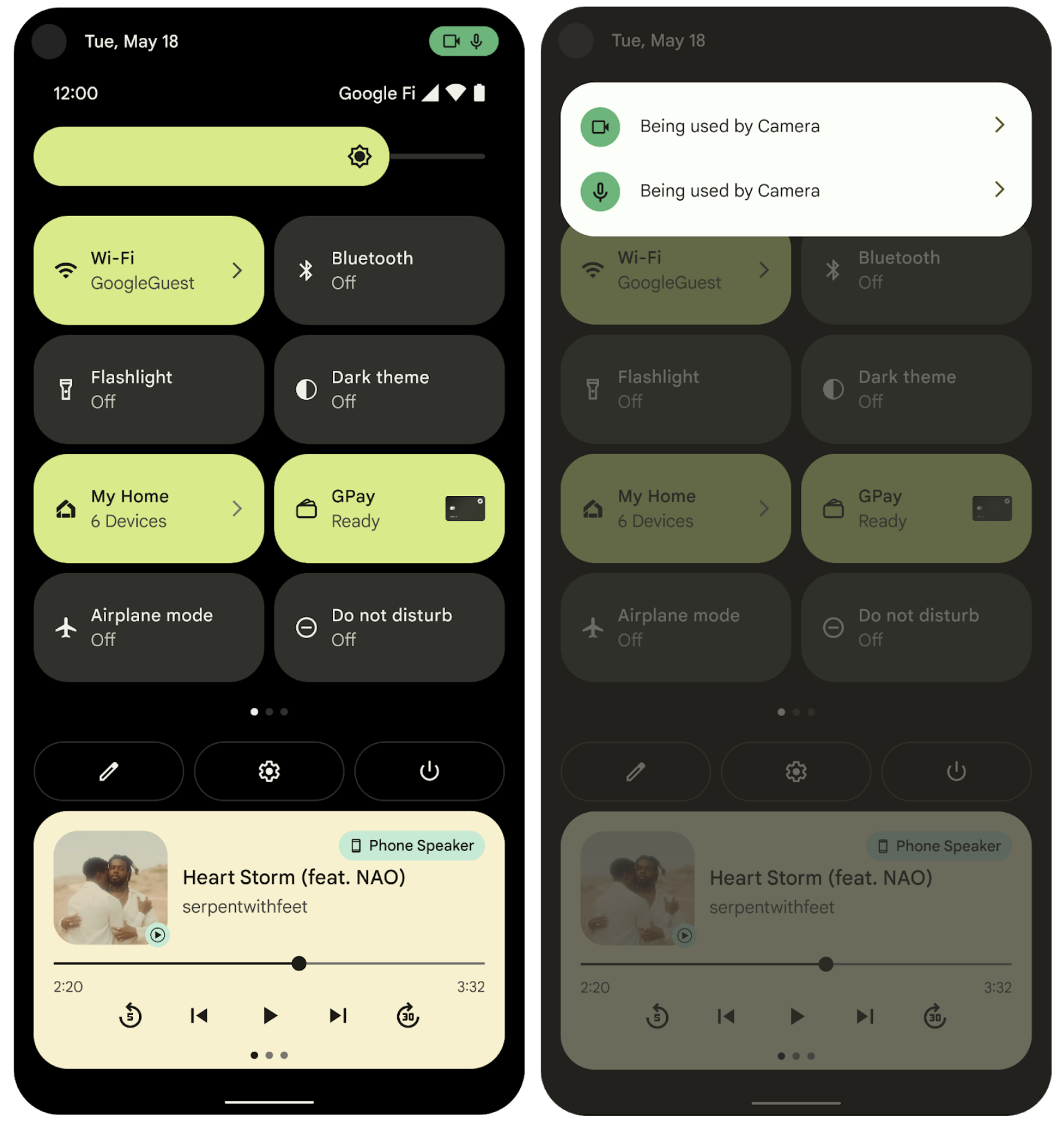
Figure 2. Active and recent access indicators.
Recent access indicators show that an app accessed data during the prior 15 seconds (or 20 seconds for location data), but that the app isn't active. All active apps show in the dialog, but only one app shows as the source of recent access, even when more than one app accessed data within a prior 15- or 20-second timeframe. All apps that accessed location data within the active or recent time window are shown in the dialog. The access view remains until the user dismisses the notification dialog.
Deliver and enable
The PermissionManager class provides a method to populate the dialog (which
resides in the System UI). The System UI reacts to the device configuration
switch privacy/mic_camera_indicators_enabled; this switch is necessary because
there are two separate delivery vehicles: (1) Deliver, then (2) Enable.
Process flow
The Permission Indicator functionality has three main parts:
- The apps
- The indicators (handled by the System UI)
- A way to determine which apps are using the data
PermissionController provides the mechanism to determine which apps are
using data. The System UI listens for apps using private data. The System UI
shows an icon in the top navigation bar that corresponds to the permissions
used. PermissionController displays data about usages when a user clicks an
icon.
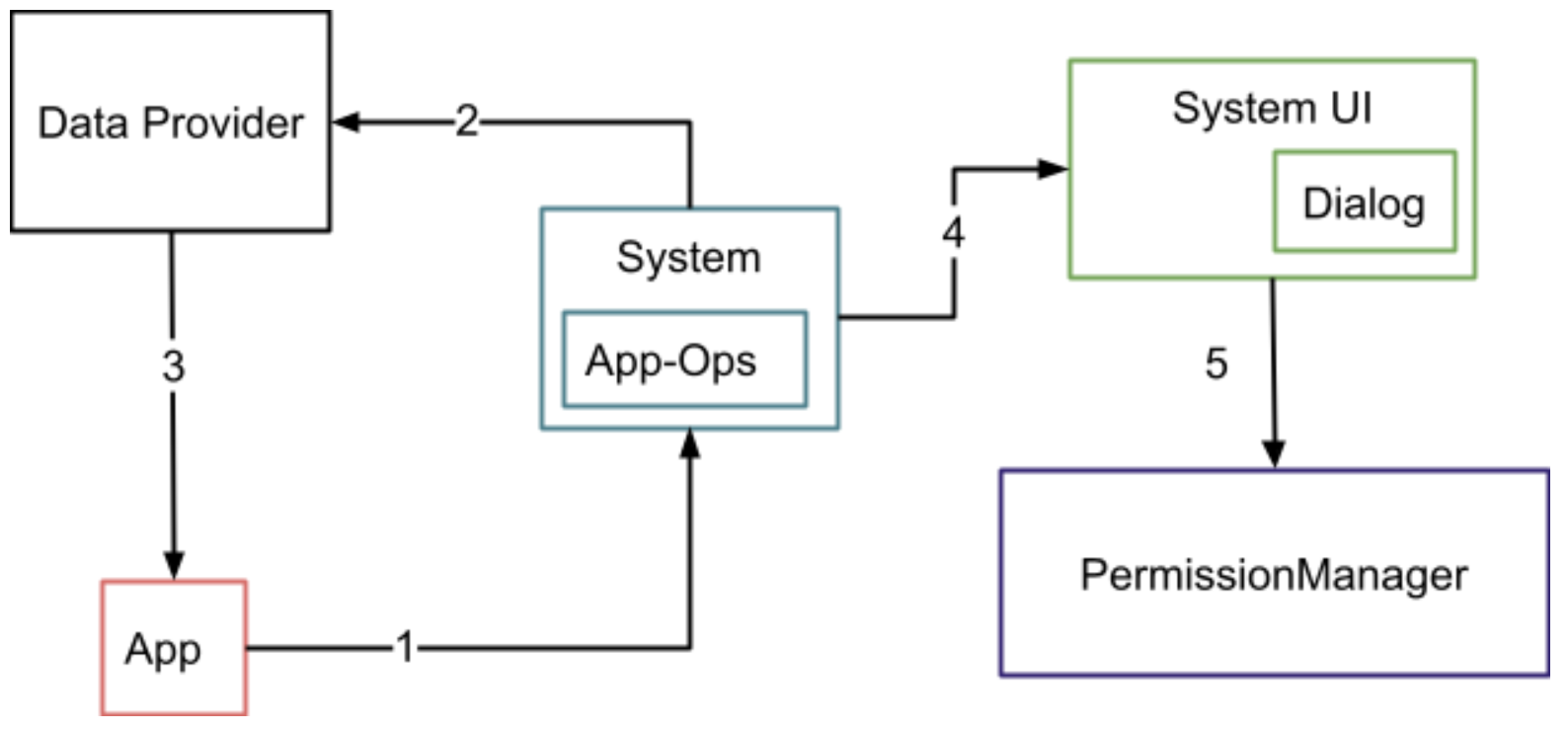
Figure 3. System components and (UI) transitions flow.
1 An app requests private data from the system.
2 The system checks permissions. If the permissions are allowed, the system notifies the data provider, and notes the usage in app ops.
3 The data provider gives data to the app.
4-5 The user clicks the icons. The System UI requests data from the
PermissionManagerand presents the dialog to the user.
Process details
App ops record accesses to runtime permission-protected APIs, tracking the activity status and the number of individual API calls, and interacting with the camera, microphone, and indicators to show users when apps have accessed audio and camera data on their devices.
Apps use the microphone, camera, or location by calling
AppOpsManager.startOp,stopOp, ornoteOp. This creates app op records in the system server. In 17 and higher, the location indicator also uses these app op records.The System UI listens for new app ops using the
AppOpsManager.OnOpActiveChangedInternalListenerandOnOpNotedListenerlisteners. When a new usage comes in (through a call to eitherstartOpornoteOp), the System UI verifies that the usage is by a system app:If the System UI verifies system app usage, and if the usage is for the microphone, the System UI checks if the microphone is muted.
If the System UI verifies nonsystem app usage, (and, for microphone usage, that the microphone is unmuted; for camera usage, that the camera is toggled on), it shows an icon reflecting such usage.
If the System UI verifies nonsystem app usage, it shows an icon reflecting such usage, provided the relevant toggles are active:
- For microphone: The microphone is unmuted.
- For camera: The camera is toggled on.
- For location: The app is running in a foreground state.
If the System UI receives a noteOp, which has no duration, it shows the icon
for at least 5 seconds (10 seconds for location). Otherwise, the icon shows
either until it receives stopOp, or for the minimum duration of 5 or 10
seconds, whichever is longer. The user clicking an icon initiates an intent that
goes to PermissionController to start the dialog.
PermissionController loads all recent usage for microphone, camera, and
location. It checks if any of those are running, or were running within the
timeframe set by the System UI (15 seconds for microphone or camera, 20 seconds
for location). If it finds a match, it displays the name of the app and the
permissions used.
Telephony must implement permission usage (to account for the separate microphone stack used in phone calls), while working with Android Google Search app (AGSA) and GMS.